 Latest reviews
 Latest blog posts




xTool M2 Review: The Right 10W or 20W Color Craft Laser?
A critical buyer's review of the xTool M2: 10W versus 20W, CMYK print-and-cut, cameras, IR and rotary options, real limits, and the best alternatives.
1. xTool M2 Review: The Short Version
The xTool M2 is an enclosed desktop diode laser built for people who want fewer setup rituals and more kinds of craft work from one machine. Its unusual trick is not simply laser power: after adding the optional CMYK inkjet module, you can print a full-color design, swap to the diode head, and cut its outline while the camera system preserves the registration. That makes the M2 particularly interesting for ornaments, labels, signs, magnets, cake toppers, paper crafts, and small personalized-product businesses.
The fundamentals are strong. Both the 10W and 20W versions use a 426 × 320 mm laser area, move at up to 600 mm/s, and include dual cameras, autofocus, adjustable air assist, and a fully enclosed Class 1 design. The 20W is the sensible choice if cutting is the priority; the 10W costs less and has the smaller laser spot for fine engraving.
It is not an all-purpose workshop machine. The 26 mm flat-material height is restrictive, the blue diode cannot cut clear acrylic, the ink is not waterproof, and the M2 depends on xTool Studio rather than offering official LightBurn support. The color, infrared, and rotary capabilities also require paid modules or bundles. Our verdict: an unusually approachable and versatile craft system, but only good value if you will actually use its camera-led workflow.
Big Strengths
- Accurate camera-led placement with optional registered CMYK print-and-cut
- 426 × 320 mm laser area and up to 600 mm/s in a compact enclosure
- Choice of detail-focused 10W or more capable 20W diode head
- Built-in autofocus and adjustable air assist reduce setup work
Trade-Offs
- CMYK printing, 1064 nm marking, and rotary work need separate modules or bundles
- Only 26 mm clearance for flat workpieces and no official riser or conveyor
- No documented official LightBurn support; key functions rely on xTool Studio
- Water-based dye ink is not waterproof and needs occasional nozzle care
Best For
- Beginners who value enclosure, cameras, and guided setup
- Crafters combining color printing with contour cutting
- Small shops producing personalized flat goods and occasional tumblers

80€ Discount on an order of 999€ or more
2. What the xTool M2 Actually Is
xTool calls the M2 a color craft laser, and that description is more useful than treating it as a simple M1 successor. The base machine accepts a 10W or 20W 445 nm blue-diode module. Optional heads add 3W-class 1064 nm infrared marking and CMYK inkjet printing. These tools share the same motion system and camera-assisted workspace, but they do not work simultaneously: print-and-cut requires a physical head swap between stages.
That distinction matters when comparing the M2 with a dedicated printer or a higher-powered cutter. Its value lies in keeping placement, design, and processing inside one xTool Studio project. It is not the fastest way to mass-print labels, nor does a 20W diode replace a CO₂ laser for transparent acrylic. It is a compact, guided production system for varied craft jobs.

2.1 xTool M2 Specifications
- Work area
- 426 × 320 × 26 mm
- Max. speed
- 600 mm/s
- Connections
- WIFIUSB
- Air assist
- Yes
- Camera
- Yes
- Enclosure
- Yes
- Autofocus
- Yes
- Software
 xTool Studio
- Operating systems
- WindowsmacOSiOSiPadOSAndroid
- File formats
.svg.dxf.png.jpg- Weight
- 12.3 kg
- Warranty
- 12 months
- Release
- 2026-05-27
- Laser class
- Class 1
3. 10W or 20W: Which xTool M2 Should You Buy?
The chassis, cameras, work area, and top motion speed are the same, so the decision comes down to the work you expect to do.
3.1 Choose the 10W for Detail and Lower Entry Cost
The 10W module has a stated 0.06 × 0.04 mm spot, compared with 0.08 × 0.06 mm on the 20W. That smaller spot can preserve finer lines in detailed engraving. xTool rates it to cut up to 8 mm basswood plywood in one pass, but that is a controlled best-case claim: density, glue, moisture, focus, air flow, and desired edge quality can all require slower settings or multiple passes.
Choose 10W if most projects are paper, thin wood, card, engraving, or inkjet print-and-cut and you only cut thicker stock occasionally.
3.2 Choose the 20W for Regular Cutting
The 20W version is rated for up to 10 mm basswood plywood in one pass and has more power headroom for faster cuts or less forgiving stock. It is still a blue-diode laser, so extra watts do not solve the wavelength's inability to cut clear acrylic. Nor does the larger spot make it a poor engraver; the practical difference is modest for most signs and products.
For a small business or anyone expecting wood cutting to be a normal part of the workflow, the 20W is our preferred configuration. The 10W makes more sense when purchase price and the finest possible spot outweigh throughput.
4. Cameras, Autofocus, and Day-to-Day Workflow
The M2 uses a 16 MP overview camera and a 5 MP close-view camera. The overview makes layout on scrap pieces and batches far easier than coordinate-only positioning. The close camera supports more precise alignment, automatic material measurement, and focusing. This is the feature set beginners will feel every day—not the maximum-speed number on the box.
The integrated air pump is another welcome choice. Its output is adjustable in software, so light engraving and cutting do not require the same air setting. The enclosure and lid/baseplate interlocks give the M2 a Class 1 classification during normal operation. That does not make laser processing unattended or fume-free: extraction, active supervision, a clean work area, and a verified laser-safe material list remain essential.
The main ergonomic compromise is height. Flat workpieces are limited to 26 mm, and xTool says the M2 does not support its riser base, conveyor feeder, or honeycomb panel. The slat bed is appropriate for the compact design, but owners doing repeated cut-through jobs should expect residue and eventual wear on the sacrificial surface.
ℹ️Customer ratings
Versatile crafting tool
Smart design and very user friendly.
— Anonymous
Capable laser and printer functionality
The 10W laser and printer module work well, but the initial setup and workflow could be improved.
— Jeff H.
Love my new M2
A positive first-laser experience with good project results, although going directly from preview to print and several small workflow details could be better.
— Travis D.
5. CMYK Print-and-Cut: Clever, but Not Magic
The optional inkjet head is the M2's defining accessory. It prints at up to 1200 dpi and 150 mm/s with a 40 mL CMYK cartridge, including a true black channel. xTool states combined print-and-cut registration of 0.3 mm or better. You print first, replace the inkjet head with the laser module, then let the shared camera reference keep the cutting path aligned.
This is most compelling on light, absorbent materials: paper, labels, pale wood, canvas, photo paper, and compatible acrylic. There is no white ink, so dark substrates change or hide the printed colors. On porous wood, excess ink can follow the grain and soften edges; xTool's own troubleshooting guide recommends suitable coating or lower ink density when bleeding appears.
Two limits deserve more attention than the marketing gives them. First, the water-based dye ink is not water-resistant. Products exposed to moisture need material-specific testing and potentially a compatible protective finish. Second, the nozzles can dry during long idle periods, so the module adds calibration, nozzle checks, and occasional cleaning to the ownership routine.
xTool's current support pages also quote two different inkjet-area figures: the general M2 FAQ lists 300 × 294 mm, while the dedicated inkjet FAQ lists a 391.5 × 290 mm maximum printable area. These may describe different usable modes, but the documentation does not make the distinction sufficiently clear. Plan inkjet layouts from the live xTool Studio boundary rather than assuming the full 426 × 320 mm laser area is printable.


6. Materials and Real Limits
With the blue diode head, the M2 cuts and engraves wood, paper, card, leather, bamboo, and suitable dark opaque acrylic. It can mark coated or anodized metal. It cannot cut transparent acrylic, and highly reflective bare metals are a poor or unsafe target for the blue module. Always confirm material composition: PVC, vinyl containing chlorine, and unknown plastics do not belong in a laser enclosure.
The optional infrared head broadens marking to stainless steel, copper, aluminum, precious metals, and selected plastics. Its nominal specification is 3W at 1064 ±10 nm (the manual gives 3.3W maximum output). It marks rather than cuts structural metal, so buyers needing deep engraving, high-volume metal work, or metal cutting should compare a fiber laser instead.
Curved-surface and batch positioning can be useful for decorated objects, but the 26 mm flat height and proprietary accessory ecosystem keep the M2 focused on compact craft production rather than general fabrication.
7. Software: Easy to Start, Closed by Design
The official workflow runs through xTool Studio on Windows or macOS, with Wi-Fi or USB connectivity. Supported imports include common formats such as SVG, DXF, JPG, JPEG, PNG, and BMP. Material presets, the camera view, autofocus, ink controls, and print-and-cut registration all live in that software.
This integration is why the M2 feels friendly, but it is also a lock-in risk. xTool does not document official LightBurn support for the M2, so buyers with established LightBurn libraries or automation should not assume compatibility. If you prefer an open, controller-centric workflow, a conventional diode platform may be the better tool even if it requires more manual positioning.
8. xTool M2 Accessories Worth Considering
Avoid buying every bundle by default. Start from the process you intend to sell or use most often, then add the module that removes a real limitation.
8.1 CMYK Inkjet Module
This is the reason to choose the M2 over many enclosed diode competitors. Buy it for registered color print-and-cut on compatible flat materials—not as a replacement for a fast office printer or a waterproof UV printer. Confirm the exact bundle contents because the module and cartridge are not included with every M2 package.
- xTool M2 CMYK Inkjet ModuleAdds camera-registered 1200 dpi full-color print-and-cut
8.2 3W 1064 nm Infrared Module
The IR head is the useful expansion for jewelry, identification plates, anodized aluminum, and selected plastics. It is a marking tool, not a miniature metal cutter, and its 412 × 310 mm working area is slightly smaller than the blue-diode area.
- xTool M2 3W Infrared ModuleExtends the M2 to direct marking on metals and selected plastics
8.3 RA3 Lite Rotary Attachment
The M2-specific RA3 Lite handles cylinders, spheres, rings, and vase-shaped objects up to roughly 100 mm diameter. Its major practical advantage is that it fits the low-profile M2 workflow without a riser. It is worthwhile for tumbler and jewelry sellers; flat-work users can skip it.
- xTool RA3 Lite for M2Supports cylinders spheres rings and vases without a riser
8.4 Smoke Extraction
The enclosure controls access to the beam; it does not neutralize smoke. xTool lists the Desktop Smoke Purifier with an adapter, SafetyPro AP2/AP2 Max, and IF2 extraction products as compatible. If you cannot vent safely outdoors, budget for suitable filtration and its replacement filters before treating the laser as an indoor appliance.
- xTool M2-Compatible Smoke ExtractionIndoor use still needs appropriate exhaust or filtration
9. Pros and Cons
Pros & Cons
- Pros
- Accurate camera-registered print-and-cut workflow with the optional CMYK module
- Large 426 × 320 mm laser area and fast 600 mm/s motion in a compact enclosed machine
- Choice of 10W or 20W diode power plus optional 3W infrared metal-marking head
- Dual cameras, autofocus and material measurement reduce setup work for beginners
- Built-in adjustable air assist and Class 1 interlocked enclosure
- Strong launch value and 4.92/5 average from 25 reviews on xTool's product page
- Cons
- No official LightBurn support; full operation depends on xTool Studio
- Only 26 mm flat-material clearance, with no official riser, conveyor or honeycomb panel support
- Blue diode modules cannot cut clear acrylic and struggle with white, blue and reflective materials
- CMYK printing needs a separately purchased module and its water-based dye ink is not water-resistant
- Inkjet nozzles require checks and cleaning, especially after long idle periods
- Long-term reliability evidence is limited and many early independent reviews used manufacturer-supplied units
10. xTool M2 Alternatives
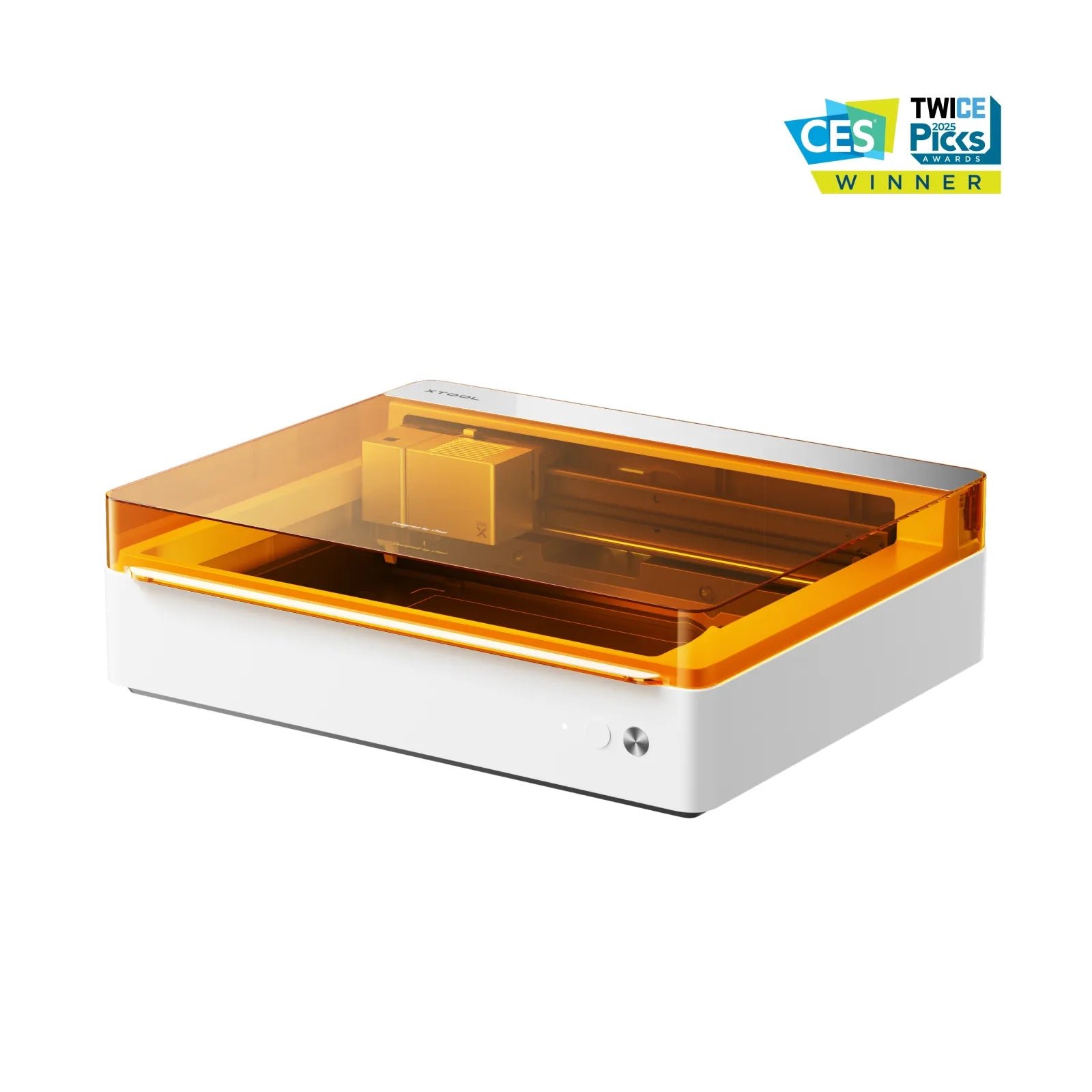
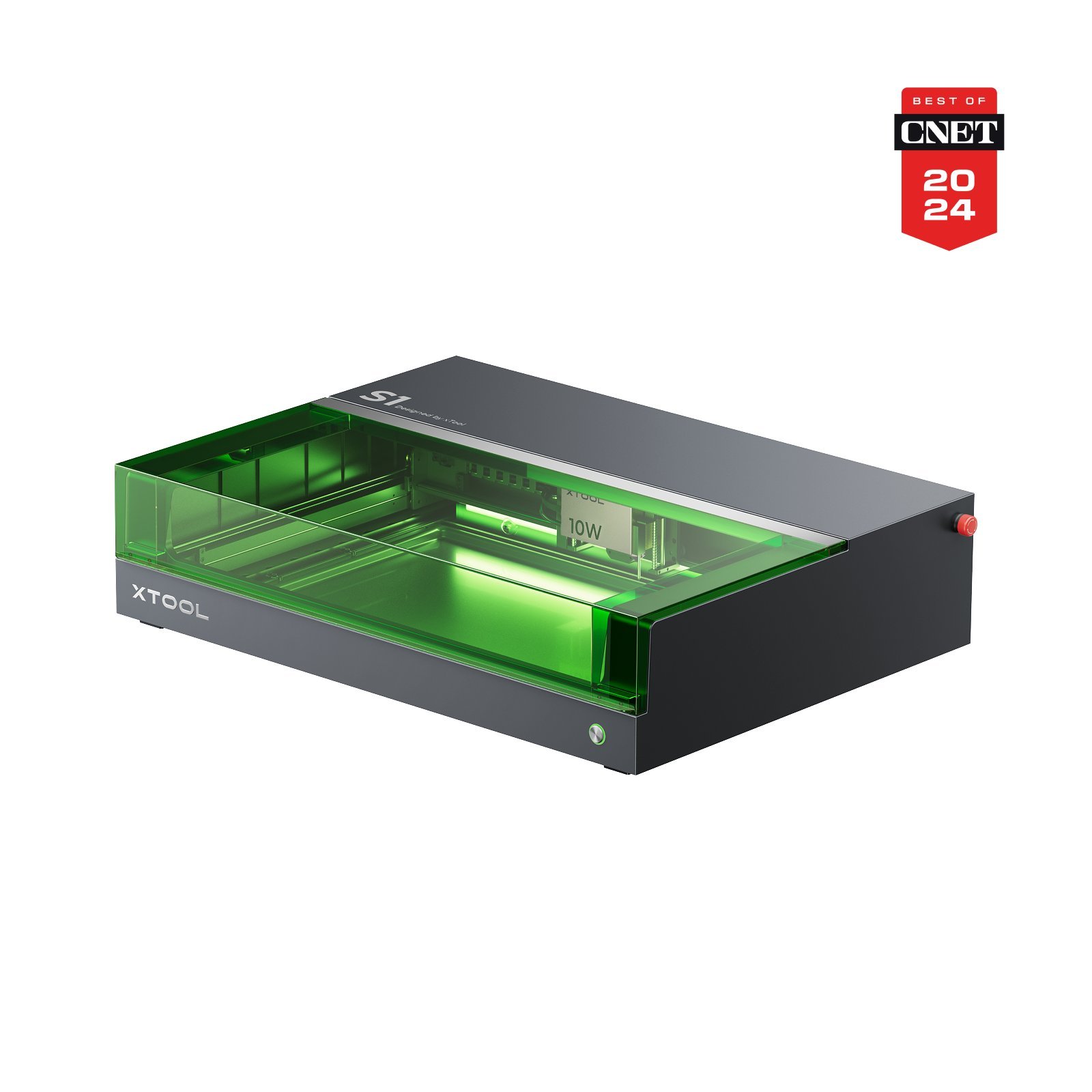
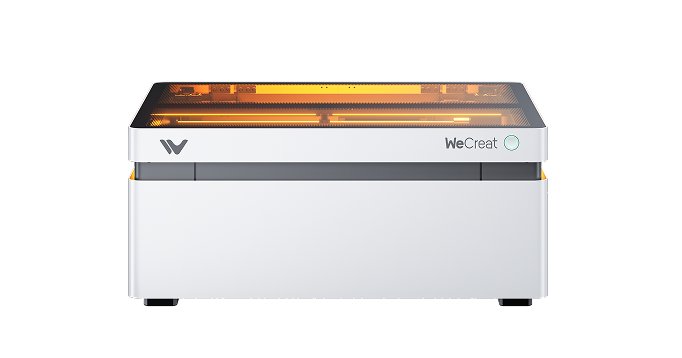
The closest alternative is the xTool M1 Ultra. It is the better choice when blade cutting, drawing, foil transfer, and a broader multi-tool craft platform matter more than the M2's improved cameras and CMYK workflow. Choose the xTool S1 when laser cutting is the core job and you want configurations up to 40W plus a more established laser-accessory path. The WeCreat Vision Series is the outside-brand comparison for buyers wanting an enclosed camera-equipped 20W or 40W diode platform.
These are not simple rankings: the M2 wins on approachable, registered color craft; the S1 wins on diode cutting headroom; the M1 Ultra wins on non-laser tool variety; and the WeCreat Vision offers a credible enclosed alternative outside xTool's software ecosystem.




11. Conclusion: Is the xTool M2 Worth Buying?
The xTool M2 is worth buying when camera alignment and mixed-media craft output are the point of the purchase. It turns several fiddly jobs—placing art on irregular scraps, focusing, switching from color to contour cutting, and arranging batches—into a guided workflow. That is meaningful productivity for a beginner or a small personalization shop.
11.1 Technical Parameters
The 426 × 320 mm area, 600 mm/s motion system, dual cameras, autofocus, and integrated air assist are competitive for a compact enclosed diode laser. The 20W module is the stronger all-round choice; the 10W favors lower cost and finer nominal spot size. The 3W IR option is useful for marking, but none of these modules turns the M2 into a CO₂ acrylic cutter or a fiber metal cutter.
11.2 Ease of Use
This is the M2's strongest category. Camera preview, autofocus, enclosure, software presets, and shared print-and-cut registration remove common beginner obstacles. The trade-off is dependence on xTool Studio and the need to physically swap and calibrate modules. The inkjet head also introduces printer-style maintenance that a laser-only owner would not have.
11.3 Customer Service and Ownership Risk
xTool provides an extensive and actively updated M2 support library, and the standard warranty is listed as 12 months. The product is still new, however. Early owner reports and reviews are useful for workflow impressions, not proof of multi-year reliability; many launch-period reviewers also disclosed manufacturer-supplied machines. Consumable ink, filters, and proprietary modules should be included in the ownership budget.
11.4 Overall Verdict
best-lasercutter.com recommends the xTool M2 20W for buyers who want a compact laser to cut regularly and intend to use its camera or color ecosystem. Choose 10W for lighter materials, detailed engraving, and the lowest entry cost. Skip both if clear acrylic, tall workpieces, LightBurn, or production metal work are core requirements. The M2 is not the most open or expandable laser, but it may be the easiest current route from a color design to a neatly registered laser-cut object.
12. FAQ About the xTool M2
What is the difference between the xTool M2 10W and 20W versions?
Can the xTool M2 print in color and then laser-cut the outline?
Is the CMYK printer included with every xTool M2?
Can the xTool M2 engrave metal?
Does the xTool M2 support LightBurn?
Is there an xTool M2 40W version?
What is the xTool M2 work area and maximum material height?
Can the xTool M2 cut clear acrylic?
Does the xTool M2 have air assist and autofocus?
Is the xTool M2 safe to use at home?
Does the xTool M2 support rotary engraving?
Is the xTool M2 ink waterproof?
What connections and file formats does the xTool M2 support?
How long is the xTool M2 warranty?
13. Research Method and Sources
This is an editorial research review, not a claim that our team performed a long-term hands-on endurance test. We cross-checked the live database listing, official M2 product page, xTool M2 FAQ, M2 user guide, CMYK module FAQ, RA3 Lite guide, and recent independent coverage. Manufacturer cutting depths and accuracy figures are identified as stated specifications rather than independently reproduced results. For launch context, read our xTool M2 announcement analysis.